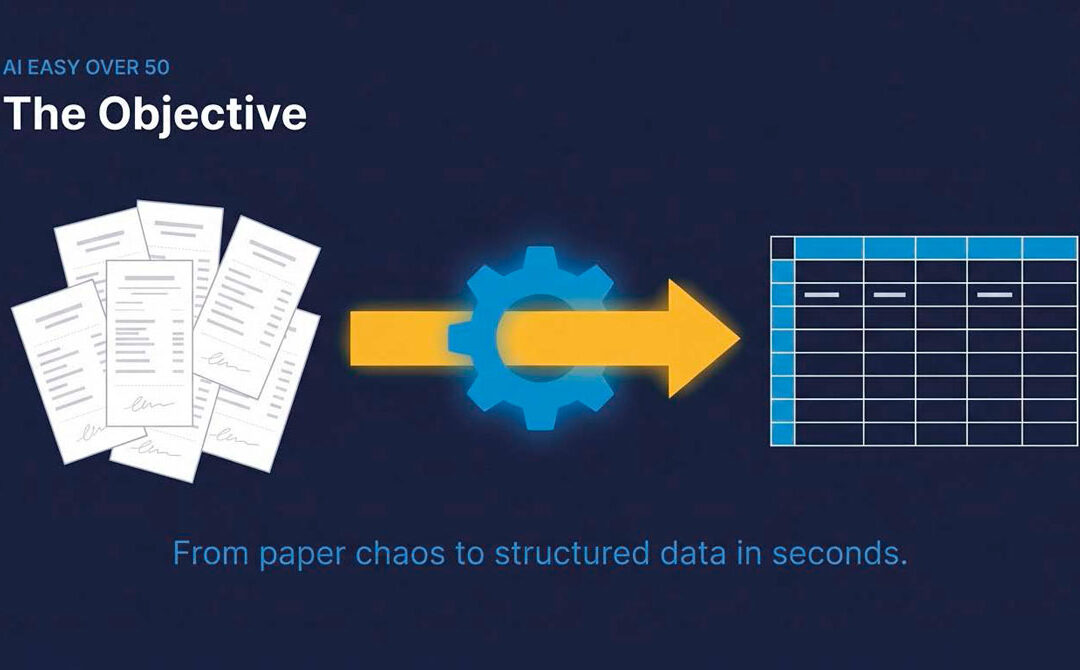
If you've ever stared at a pile of receipts you need to input for your accounts and thought, "Ugh, maybe tomorrow," you are not alone. I spent years as a freelance graphic designer doing exactly that, until "tomorrow" came around and I had to finally do it. What wasn’t possible back then was getting AI to do most of this for me in a matter of minutes.
If you want to use AI to turn your receipts into a spreadsheet in minutes without needing any technical know-how, this post and video walk you through the process.
What You Actually Need
Just two things: a Google account and your receipts. That's it.
You'll be using Google Gemini, which is free to access at gemini.google.com. You don’t need a paid subscription to get started either.
How to Get AI to Read Your Receipts
The first thing you do is open Gemini and ask it to help you write a prompt. Something like this works well:
You are an expert at organizing receipts. I want to upload my receipts and have you turn them into a spreadsheet. Each receipt should become one row with the columns: Date, Company, Total. Only use the final total from the receipt, not the individual items. The output should be as a data table so I can export to sheets. Do not include £ signs in the data. Please write the prompt I should use for this.
Once you've typed that in and uploaded your receipt photos, Gemini reads them and builds you a table that you can then open in Google sheets (you can export that to Excel too). A quick tidy-up if you need it, but most of the work is already done.
The first time I tried this, I was so thrilled it saved me hours of tedium. It took me about three minutes to do something that used to take me half an afternoon.
The Bit That Makes It Even Easier: Gemini Gems
Once you've got a prompt that works well for your receipts, you don't have to retype it every single time.
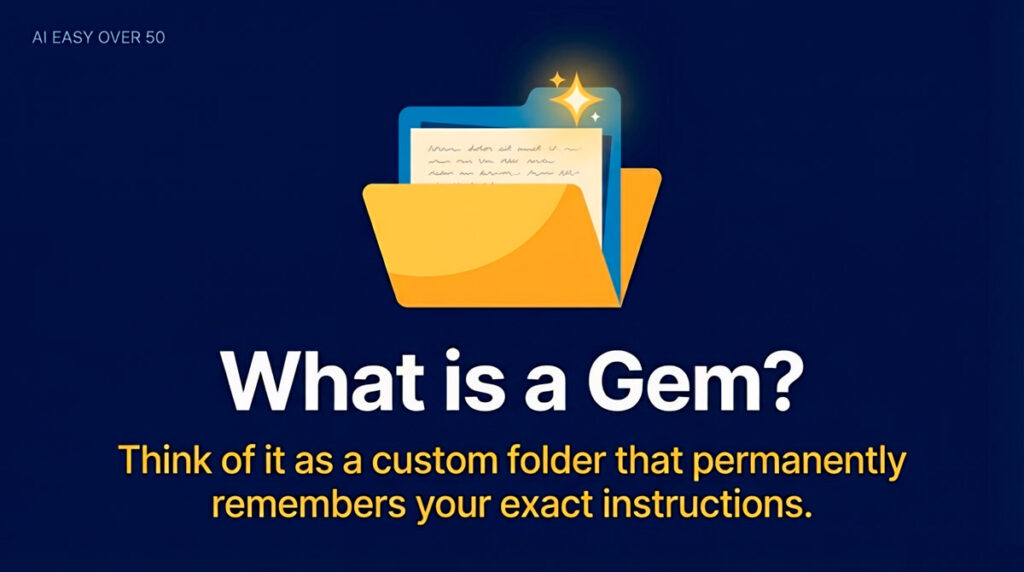
You can save it inside something called a Gemini Gem. Think of a Gem as a small folder that holds your instructions. You set it up once, give it a name (something like "Receipts Tracker"), paste your prompt in, and save it.
Next time you have receipts to process, you just open your Gem, drop the files in, and Gemini already knows exactly what you want without typing anything else.
One Thing to Bear in Mind for AI Bookkeeping
AI is good at this, but it does occasionally make a mistake, especially with faded receipts or awkward formatting. Always give everything a quick once over before you use it.
However, I don’t know about you, but I make mistakes inputting receipts manually too, probably more of them.
Why This Matters If You're Self-Employed
If you use a spreadsheet to track your accounts (and a lot of freelancers and solopreneurs do), this little workflow can save you time every month, and you don’t even need to be techy. You just describe what you want, upload your receipts, and let AI get on with it.
It also means you're more likely to actually do your books regularly rather than leaving them until you absolutely have to.
If you found this useful, I share practical tips like this every week for over-50 solopreneurs and freelancers who are getting to grips with AI.