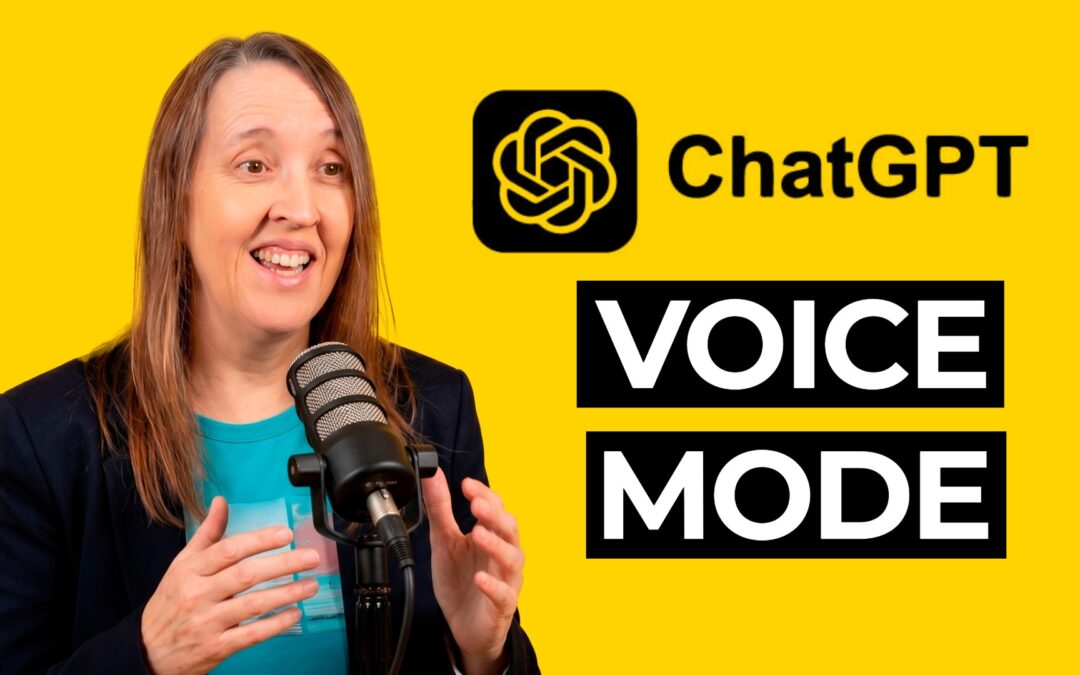
The ChatGPT Voice Mode Feature You Might Not Have Tried Yet
There’s a little button sitting right there in ChatGPT that most people scroll straight past. It says “use voice.” If you haven’t tried ChatGPT voice mode yet, you’re missing one of the most useful features, especially if you’re someone who thinks better out loud than staring at a blank screen.
I’m Tara, and I spent over 25 years as a freelance graphic designer before going all-in on AI. These days I help over-50 solopreneurs and freelancers get practical with AI tools, no jargon, no hype. And voice mode is one of those things I kept ignoring until I actually used it. Now I use it all the time.
It Feels Like a Real Conversation (Not Typing Ping Pong)
The thing that surprised me most was how different it feels to talk to ChatGPT versus type at it. When you type, it’s very back and forth. You send a message, wait, read the reply, type another message. It works, but it’s a bit like passing notes.
Voice mode is much more like having an actual conversation. ChatGPT responds in real time, asks you follow-up questions, and the whole thing flows in a way that typing just doesn’t.
I tested it by brainstorming ideas for an AI workshop I was planning. Within a few minutes, I had angles I wouldn’t have come up with on my own. It was genuinely collaborative. I wish I’d had this back when I was a freelance designer trying to come up with concepts on my own at 11pm.
Practical Ways to Use ChatGPT Voice Mode
Here are a few ways you can use it that aren’t all obvious:
Brainstorming ideas. Talk through whatever you’re working on, whether that’s a blog post, a new service, or a workshop outline. ChatGPT listens, responds, and pushes your thinking forward. It’s far better than staring at a blank page hoping inspiration turns up.
Practising something nerve-wracking. I used voice mode to rehearse for a radio interview about my art, and it came up with questions I never would have anticipated. You could do the same before a client pitch, a podcast appearance, or even a difficult phone call. It’s like having a patient practice partner who never judges you.
Dictating instead of typing. I don’t know about you, but I make more mistakes typing than I’d care to admit. If you’re the same, you can just press the small microphone icon, say what you want, and ChatGPT types it out for you. Simple as that.
How Do You Turn On ChatGPT Voice Mode?
Open ChatGPT and look for the “use voice” button for a full back-and-forth conversation, or the small microphone icon if you just want to dictate text. They do different things, so it’s worth knowing which is which.
If you want to change the voice style (there are a few to choose from), tap your profile icon, go to settings, and look for the voice section. Have a play around and pick one you like. It makes more difference than you’d think.
ChatGPT Voice Mode FAQ
Is ChatGPT voice mode free?
Yes, voice mode is available on the free plan of ChatGPT, though some advanced voice features may require a paid plan. The basic voice conversation and dictation work without paying.
What’s the difference between voice mode and the microphone icon in ChatGPT?
The “use voice” button starts a full spoken conversation where ChatGPT talks back to you out loud. The microphone icon simply converts your speech to text so you can dictate your prompts instead of typing them.
Can I use ChatGPT voice mode on my phone?
Yes. Voice mode works on the ChatGPT app for both iPhone and Android. It actually works really well on mobile, which makes it handy when you’re away from your desk.
Give it a go. You might be surprised how natural it feels. And if you’d like more practical AI tips like this, delivered in plain English every week, sign up for my weekly AI emails. No jargon, no overwhelm, just useful stuff you can actually try.